![[Steve Friedl Logo]](/images/unixwiz-logo-140x80.gif)
This site uses advanced css techniques
Prior to the Lincoln release of Evolution, there were separate versions of Evo for SB use (EvoLocal) and for remote use (EvoRmt), but Lincoln provides a single, unified client. These instructions detail how a service bureau with in-house servers will configure their clients for use inside the office.
In Killington and prior, there was a single drop-down box that controlled the connection type, and each label implied a collection of three separate parameters.
| Type | TCP Port | Encryption? | Compression? |
|---|---|---|---|
| LAN | 9500 | No | None |
| T1 | 9901 | Yes | Minimum |
| Cable/DSL | 9902 | Yes | Medium |
| Modem | 9903 | Yes | Maximum |
With Lincoln, however, these parameters are all set separately: this added flexibility adds a bit of complexity which we hope to dispel with this document.
The default behavior for remote users is to do the right thing, but internal SB users typically require a small but one-time configuration: this is always required when installing on a new workstation, and may be required on automatic upgrades from Killington.
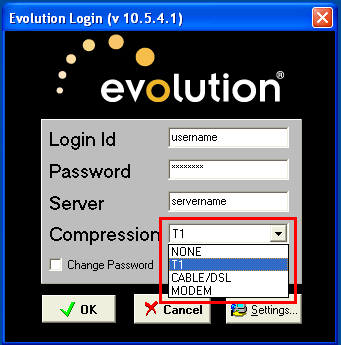
The initial login screen looks familiar: the Login ID and Password are the same you've always used, and the Server should be the hostname or IP address of the server running the Request Broker (formerly known as the Registration Daemon).
Many service bureaus wisely configure an alias in DNS, using evolive or evotest as the server name. This allows moving the Request Processor to a different machine without having to reconfigure each workstation.
The Connection Type drop-down has been replaced with a Compression field, with similar labels.
Service bureau internal users should select NONE from this drop-down list; compression is typically used to save time on a slow link (such as a modem), but is unnecessary and counterproductive on a Local Area Network.
Having set the compression, it's required to click [Settings] and change a few more parameters. Select port 9500 from the drop-down box and uncheck the Secure Connection link; there's usually no real need to encrypt traffic on a local network that never leaves the building.
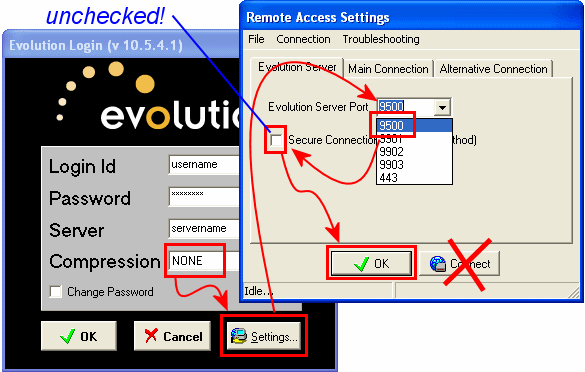
Once selected, click [OK] to dismiss the Remote Access Settings dialog. Then click [OK] on the main dialog to connect to the server.
It's possible that during an automatic upgrade operation, it may be required to perform this process twice: once you've successfully logged into Evolution, it will remember the parameters for the future.
2008/11/26: First published
![[Steve's Email]](/images/steve-email.gif)
![[RSS Feed available]](/images/feed-icon-14x14.png)